Delivery Zones Setup | Create and Manage Delivery Zones in O2VEND
Learn how to create and manage delivery zones in O2VEND Online Store. This tutorial explains where to open the delivery zones section, how to create a zone, and how to use the General, Zipcodes, and Categories tabs.
What Is Delivery Zones Setup?
The Delivery Zones Setup section helps you define which areas can receive product delivery in your online store.
It is useful for:
- organizing delivery areas by zone
- assigning zip codes to delivery regions
- linking zones with warehouses
- controlling category-based availability
- managing store delivery coverage from one place
Navigation Path
Back Office -> Online Store -> Delivery Zones
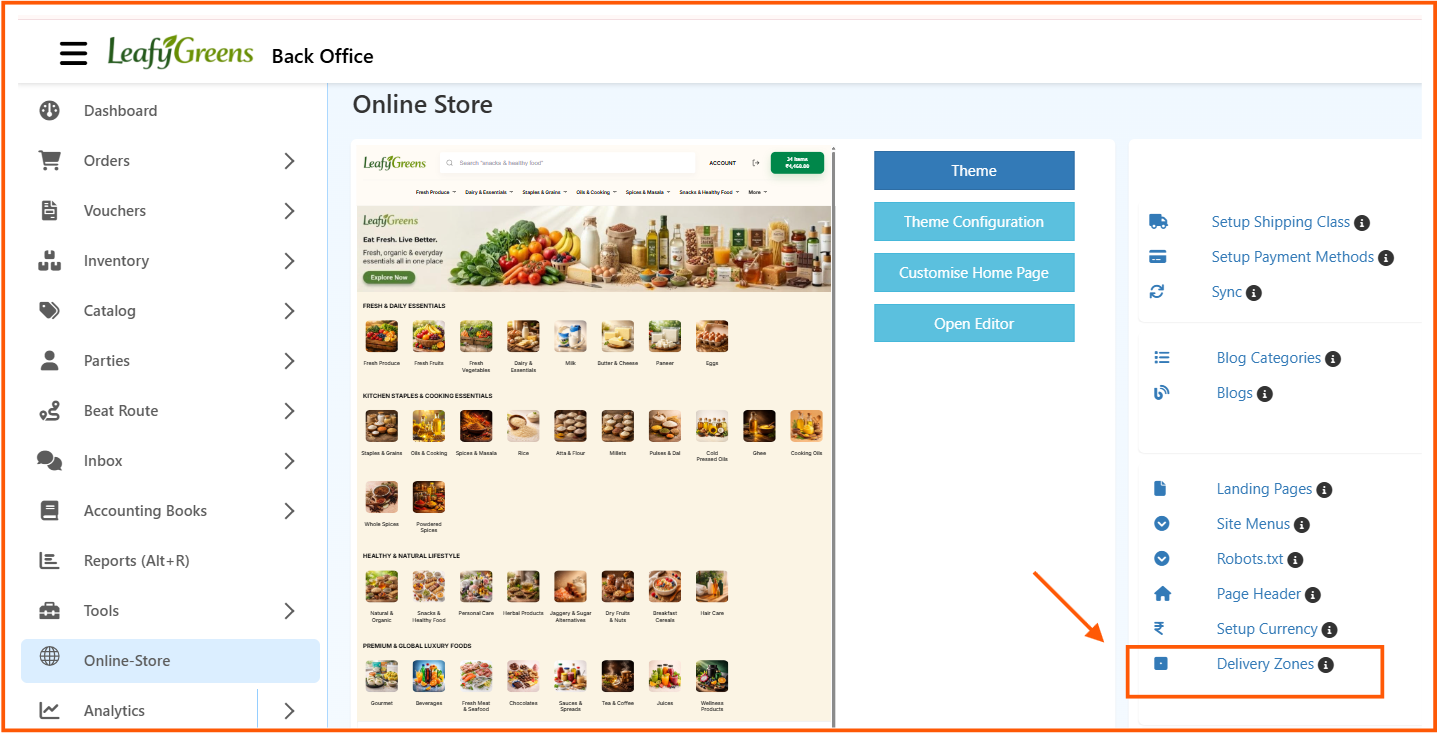
From the Online Store page, click Delivery Zones to open the zone management screen.
Zones List Page
The Zones page shows all created delivery zones in one place.

The list page includes columns such as:
- Created On
- Zone Name
- Is Active
- Actions
From this page, you can:
- click + Create Zone to add a new delivery zone
- use Edit to update a zone
- use Delete to remove a zone if it is no longer needed
How to Create a Delivery Zone
- Open Back Office
- Go to Online Store
- Click Delivery Zones
- Click + Create Zone
- Enter the general zone details
- Add zip codes for the zone
- Select categories for the zone
- Click Save
Create Zone - General Tab
The General tab is used to enter the main delivery zone details.
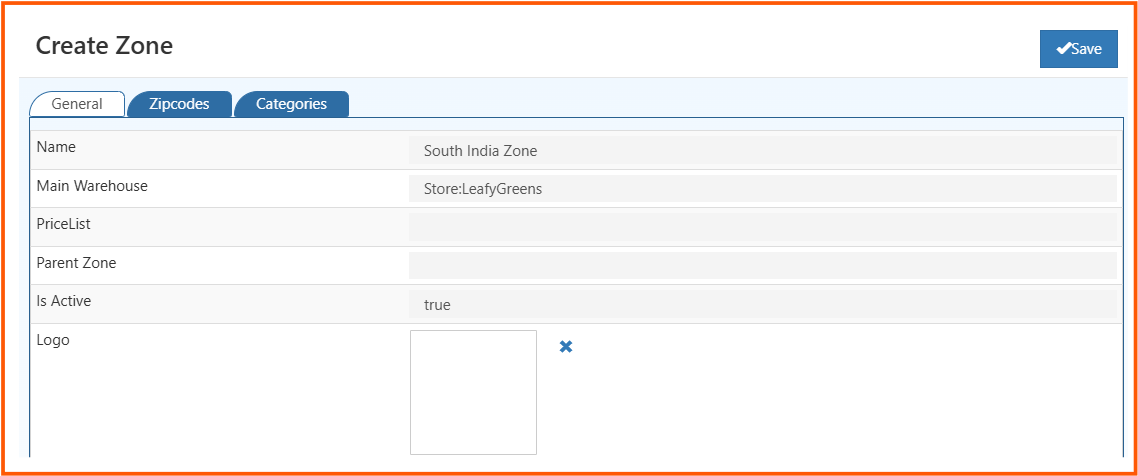
Name
Enter the delivery zone name.
Example: South India Zone
Main Warehouse
Select the main warehouse linked to the delivery zone.
Example: Store:LeafyGreens
PriceList
Select the price list if required for the zone.
Parent Zone
Select a parent zone if this zone should be linked under another zone.
Is Active
Set whether the zone is active.
If set to true, the zone can be used in the store.
Logo
You can upload a logo for the zone if needed.
Save
After entering the required details, click Save to continue with the zone setup.
Create Zone - Zipcodes Tab
The Zipcodes tab is used to add delivery zip codes to the zone.
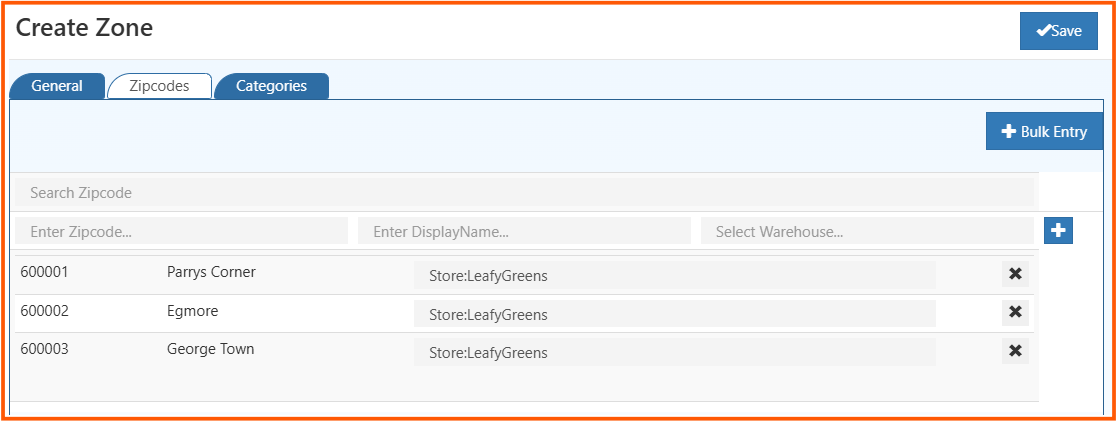
This tab allows you to:
- search zip codes
- add a zip code
- enter display name
- select the warehouse for each zip code
- use Bulk Entry when needed
Zipcode
Enter the delivery zip code.
Example: 600001
Display Name
Enter the display name for that zip code.
Example: Parrys Corner
Warehouse
Select the warehouse that should serve that zip code.
Example: Store:LeafyGreens
Use the Add action to include the zip code in the zone.
Create Zone - Categories Tab
The Categories tab is used to select which categories are available in the delivery zone.
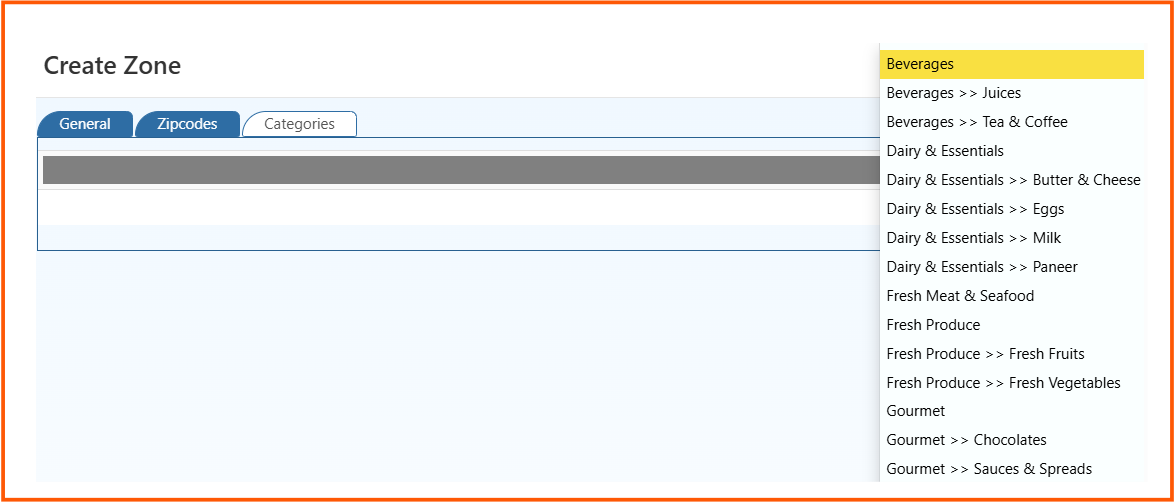
This tab helps you choose categories such as:
- beverages
- dairy and essentials
- fresh produce
- gourmet
- and other product groups shown in the category list
Use this tab when delivery availability should depend on product category.
Benefits of Delivery Zones Setup
Using the delivery zones section in O2VEND helps you:
- manage delivery coverage by area
- control zip code-based delivery setup
- assign warehouses for local delivery
- restrict category availability by zone
- improve delivery planning and store operations