Currency Configuration | Setup Multiple Currency in O2VEND
Learn how to create and manage currencies in O2VEND Online Store. This tutorial explains where to open the currency page, how to create a new currency, and what each field means.
What Is Currency Configuration?
Currency configuration helps you show product prices in the required currency for your online store.
It is useful when your business needs to:
- support different currencies
- manage currency rates manually
- control decimal display
- decide which currency is active
- set display order for the currency list
Navigation Path
Back Office -> Online Store -> Setup Currency
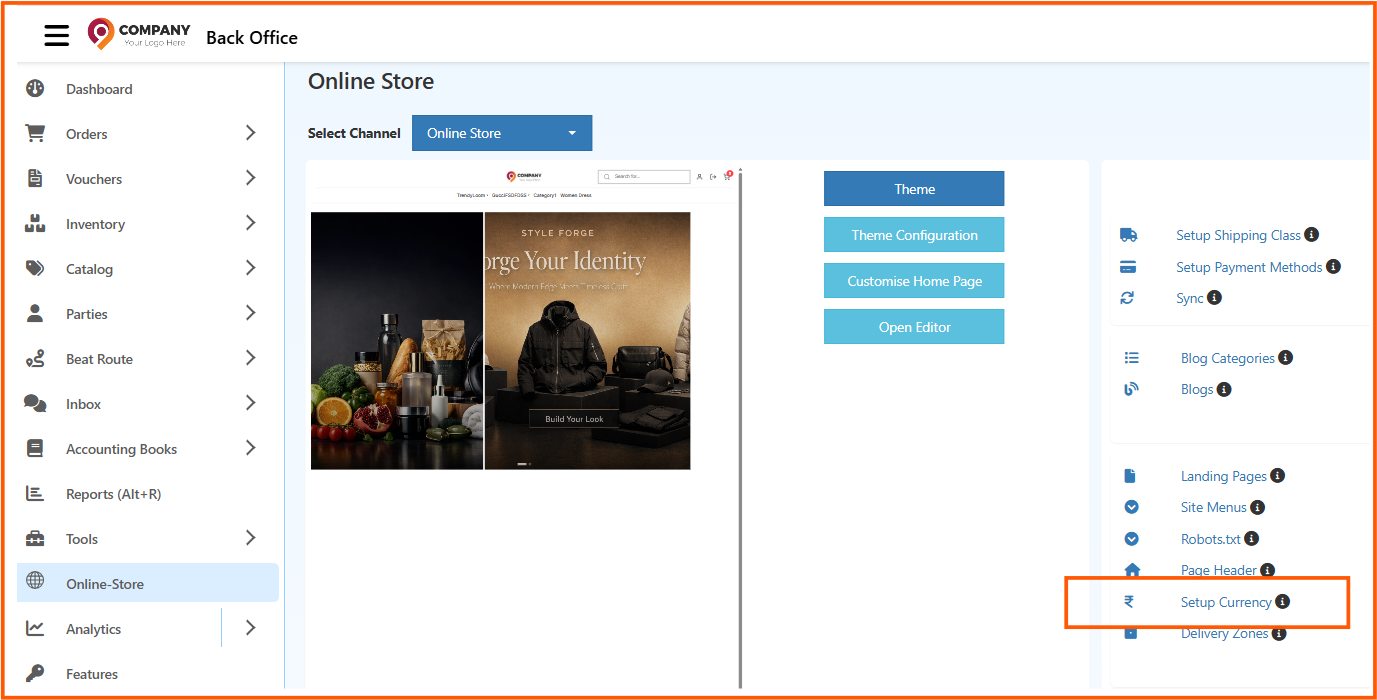
From the Online Store section, click Setup Currency to open the currency management page.
Currency List Page
The Currency page shows all created currencies in one place.

Each row typically displays:
- Id
- Rate
- Decimal Place
- IsActive
- Display Order
- Actions
From this page, you can:
- click + Create Currency to add a new currency
- use Edit to update an existing currency
- use Delete to remove a currency if it is no longer needed
How to Create a Currency
- Open Back Office
- Go to Online Store
- Click Setup Currency
- Click + Create Currency
- Select the currency Id
- Enter the Rate
- Enter the Decimal Place value
- Set Is Active
- Enter the Display Order
- Select the required Channel Groups
- Enter the Currency Symbol
- Set IsDefault if needed
- Set IsHome if needed
- Click Save
Create Currency Form
The Create Currency screen is used to add a new currency for the selected channel group.
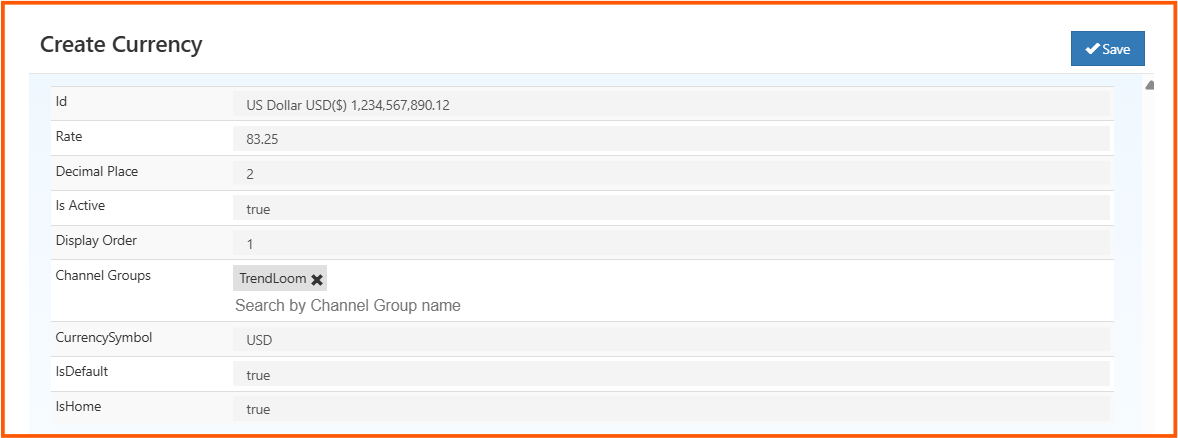
Id
Select the currency name and code.
Example: US Dollar USD($) 1,234,567,890.12
This identifies the currency that will be used in the store.
Rate
Enter the conversion rate for the selected currency.
Example: 83.25
This value is used to calculate product pricing in that currency.
Decimal Place
Enter how many decimal places should be shown.
Example: 2
This controls how prices appear in the store.
Is Active
Set whether the currency is active.
If set to true, the currency is available for use.
Display Order
Enter the display order value.
Example: 1
This controls the order in which currencies appear in the list.
Channel Groups
Select the channel group where this currency should be available.
Example: TrendLoom
This helps assign the currency to the correct online store or sales channel.
Currency Symbol
Enter the symbol or short code for the currency.
Example: USD
This is shown with product prices.
IsDefault
Set this to true if the currency should be the default currency.
IsHome
Set this to true if the currency should be treated as the home currency.
Save
After entering all required details, click Save to create the currency.
Example Currency Record
After saving, the currency appears in the list page.

A saved currency entry shows the configured rate, decimal place, active status, and display order.
Why Currency Setup Matters
Using currency configuration in O2VEND helps with:
- clear price display
- better customer experience
- support for multiple markets
- controlled currency visibility
- organized store configuration