WhatsApp Settings
The WhatsApp Settings section in O2VEND helps you create and manage WhatsApp templates used for customer notifications, order updates, delivery alerts, and other automated message flows.
This page is useful when you want to:
- create WhatsApp templates
- map templates to system events
- choose message structure
- add header, body, footer, and buttons
- assign templates to channel groups
Navigation Path
Back Office -> Inbox -> Configuration -> Create Template -> WhatsApp
How to Create a WhatsApp Template
- Go to Back Office -> Inbox -> Configuration
- Click Create Template
- Select WhatsApp
- Enter the Message Name
- Select the Type
- Choose the Event
- Select the Text Language
- Choose the Goal
- Select the Object
- Set Is Enabled
- Assign Channel Groups if needed
- Select the required Header type
- Write the message in the Body
- Add Footer text if needed
- Choose Buttons if required
- Click Save
Access WhatsApp Template Setup
- Login to the Back Office
- Open Inbox
- Click Configuration
- Click Create Template
- Select WhatsApp
This opens the WhatsApp Template screen where you can configure the message details.

Configuration Screen
Before creating a template, the Configuration page displays all existing communication templates in one list.
The list includes columns such as:
- Configuration Type
- Message Name
- Configuration Event
- Configuration Channel Group
- Is Enabled
When you select WhatsApp from the Create Template menu, O2VEND opens the WhatsApp Template creation page.
WhatsApp Template Screen
The WhatsApp Template page is where you configure message details, template structure, dynamic values, and response buttons.
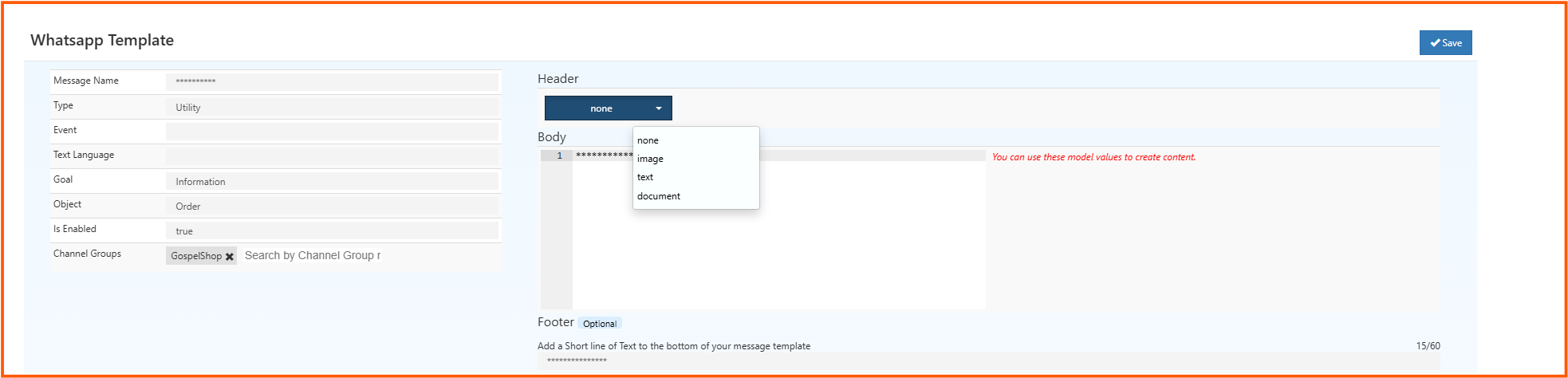
WhatsApp Template Fields
Each field in the WhatsApp Template screen has a specific purpose.
Message Name
This is the internal name of the WhatsApp template.
Use a clear name so the template can be identified easily later.
Type
This defines the template category.
Example shown in the screen:
Utility
Utility templates are commonly used for transactional communication such as alerts, confirmations, and notifications.
Event
This defines which system event should trigger the WhatsApp message automatically.
Choose the event based on when the message should be sent.
Text Language
This defines the language used in the WhatsApp message.
Use the correct language based on the customer audience.
Goal
This defines the purpose of the message.
Example shown in the screen:
Information
This helps classify the template correctly inside the system.
Object
This defines the data object used for the template.
Example shown in the screen:
Order
This affects which model values can be used in the message.
Is Enabled
This controls whether the template is active.
true-> The template is active and can be triggeredfalse-> The template is saved but not used
Channel Groups
This section is used to assign the WhatsApp template to a specific business group or channel.
Example shown in the screen:
GospelShop
Use this when the same system is used for multiple groups, stores, or business segments.
Header Section
The Header field controls the optional top section of the WhatsApp template.
Available options shown in the screen:
noneimagetextdocument
Header Types Explained
none
No header is added to the message.
Use this when only body text is enough.
image
Adds an image as the message header.
Use this for promotional or visually rich communication.
text
Adds a text-based header.
Use this when you want a short title or highlighted line above the body.
document
Adds a document-based header.
Use this when the message needs to include a document or file-related header context.
Body Section
The Body is the main content of the WhatsApp message.
This is where you write the actual message that customers receive.
The body can include dynamic values using model placeholders.
Example model values shown:
<companyName><otpValue>
These values are replaced automatically when the message is sent.
For example:
<companyName>becomes the store name<otpValue>becomes the generated OTP
This helps you create dynamic and reusable WhatsApp messages.
Footer Section
The Footer is optional.
It allows you to add a short line of text at the bottom of the message template.
Use this for:
- short support text
- closing line
- reminder or disclaimer
Since footer text is usually short, keep it simple and relevant.
Buttons Section
The Buttons section is optional and allows customers to respond or take action directly from the WhatsApp message.
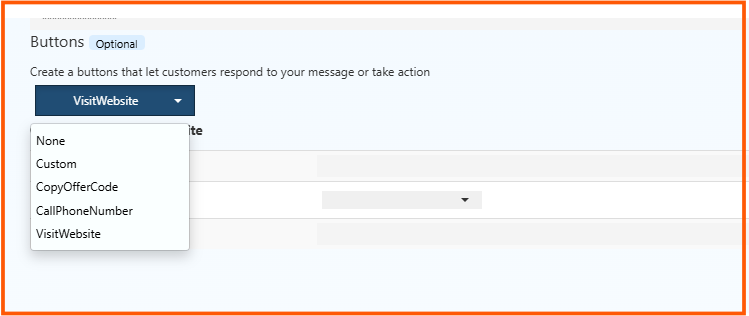
Available button options shown in the screen:
NoneCustomCopyOfferCodeCallPhoneNumberVisitWebsite
Button Types Explained
None
No button is added to the message.
Custom
Use this when a custom button response is needed.
CopyOfferCode
Lets the customer copy an offer or coupon code directly from the message.
Use this for promotions and discount campaigns.
CallPhoneNumber
Lets the customer call a phone number directly from the message.
Use this for support, sales, or quick contact actions.
VisitWebsite
Lets the customer open a website link directly from the message.
Use this for:
- product pages
- order tracking pages
- offer pages
- landing pages
After saving, the WhatsApp template becomes part of the Inbox -> Configuration list. If it is enabled and linked to the correct event, O2VEND will automatically use it whenever that event occurs.