Email Template Settings
Email templates in O2VEND are used to send automated messages for important customer actions such as OTP login, order updates, account notifications, and other informational events. This page helps you create and manage Email templates from the Back Office configuration panel.
Navigation Path
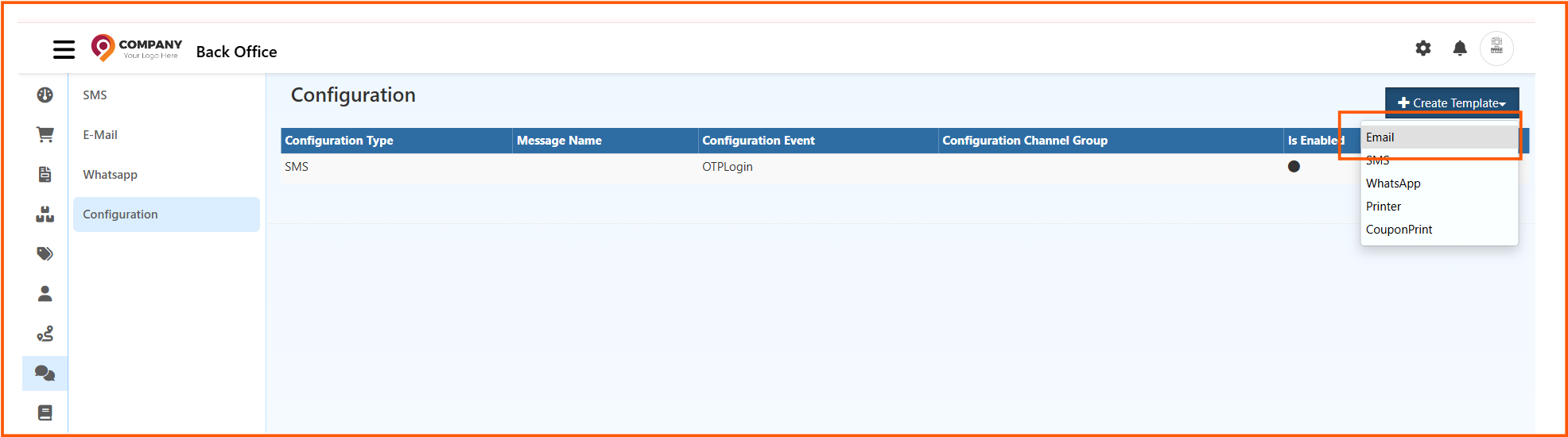
Back Office -> Inbox -> Configuration
Access Email Template Configuration
- Login to the Back Office
- Open Inbox
- Click Configuration
- Click Create Template
- Select Email from the template type list
The Create Template menu can include:
- SMS
- Printer
- CouponPrint
Choose Email to open the Email template creation screen.
What You Can Do in This Page
The Email template page allows you to:
- create a new email template
- choose when the template should be triggered
- define what type of message it is
- write the email content
- use model values like dynamic placeholders
- enable or disable the template
- assign it to channel groups if needed
Email Template Fields
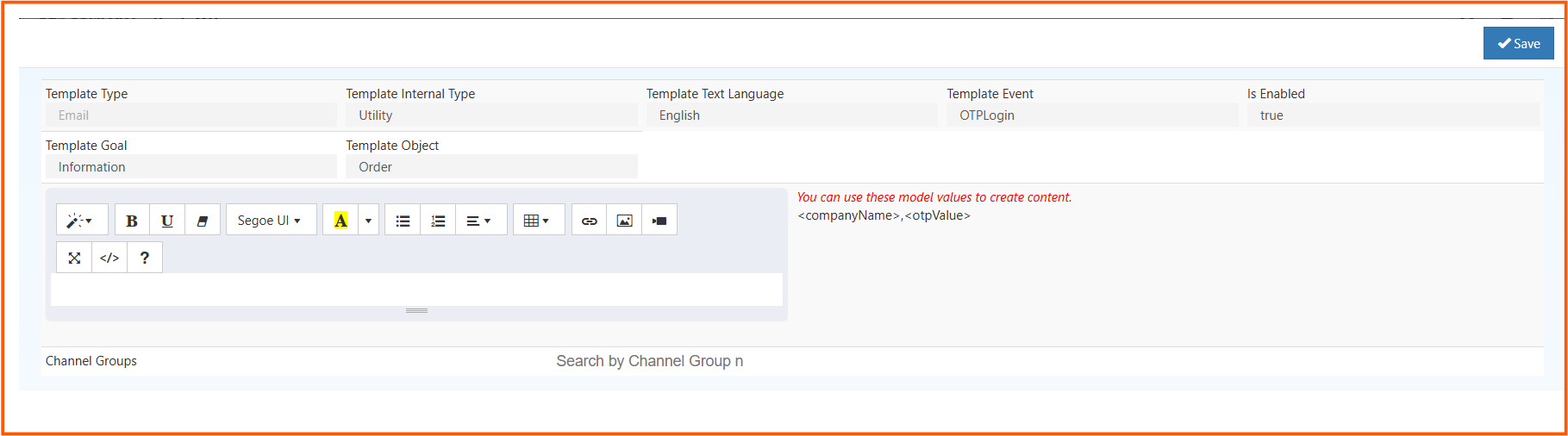
The Email template form contains configuration fields at the top, the content editor in the middle, and channel group selection at the bottom.
Template Type
This shows the communication channel used by the template.
Example: Email
This field identifies that the message will be sent as an email.
Template Internal Type
This defines the internal purpose of the template.
Example: Utility
Common usage:
- Utility: For OTP, account updates, and order-related notifications
- Marketing: For offers, promotions, and campaign emails
Choose the internal type based on the purpose of the email.
Template Text Language
This defines the language of the email content.
Example: English
Use this when you want to maintain templates in different languages for different audiences.
Template Event
This defines what system action will trigger the email automatically.
Example: OTPLogin
If the selected event occurs in O2VEND, this template will be used to send the email.
Is Enabled
This controls whether the template is active.
true-> The email template is active and can be triggeredfalse-> The template is saved but will not be used
Enable the template only after content and event mapping are confirmed.
Template Goal
This defines the purpose of the communication.
Example: Information
Typical goals may include:
- information
- confirmation
- notification
- marketing communication
This helps classify the message correctly inside the system.
Template Object
This defines the main data object used in the email.
Example: Order
The selected object decides what kind of model values can be used in the email content.
Examples:
Orderfor order-related emailsCustomerfor customer-related messagesCartfor cart reminders
Content Editor
The editor is the main area where you compose the email body.
It allows you to format the message using tools such as:
- bold
- underline
- italic
- font selection
- text color or highlight
- bullet list
- numbered list
- alignment
- table insertion
- link insertion
- image insertion
- video/media insertion
- fullscreen or source/code view
Use this editor to design a professional email with headings, spacing, links, and dynamic content.
Model Values
The template screen also shows suggested model values on the right side.
Example shown in the screen:
<companyName><otpValue>
These values are placeholders that will be replaced automatically when the email is sent.
For example:
<companyName>can display your store or company name<otpValue>can display the actual OTP generated for login
You can insert these values inside the email content so the message becomes dynamic instead of static.
Channel Groups
The Channel Groups section helps you assign the template to specific channels or store groups.
You can use this when the same Back Office manages multiple business channels. If channel groups are configured, the email template can be limited to the selected group only.
After saving, the email template becomes available in the configuration list. If it is enabled and mapped to an event, O2VEND will use it automatically when that event occurs.