O2VEND Inbox Configuration Setup
The Configuration section inside Inbox is the central place where you create and manage communication templates in O2VEND. From one page, you can configure templates for SMS, Email, WhatsApp, Printer, and CouponPrint.
This page is useful when you want to control:
- which channel should send the message
- when the message should be triggered
- which event should use the template
- whether the template should be active
- which channel group should receive it
Navigation Path
Back Office -> Inbox -> Configuration
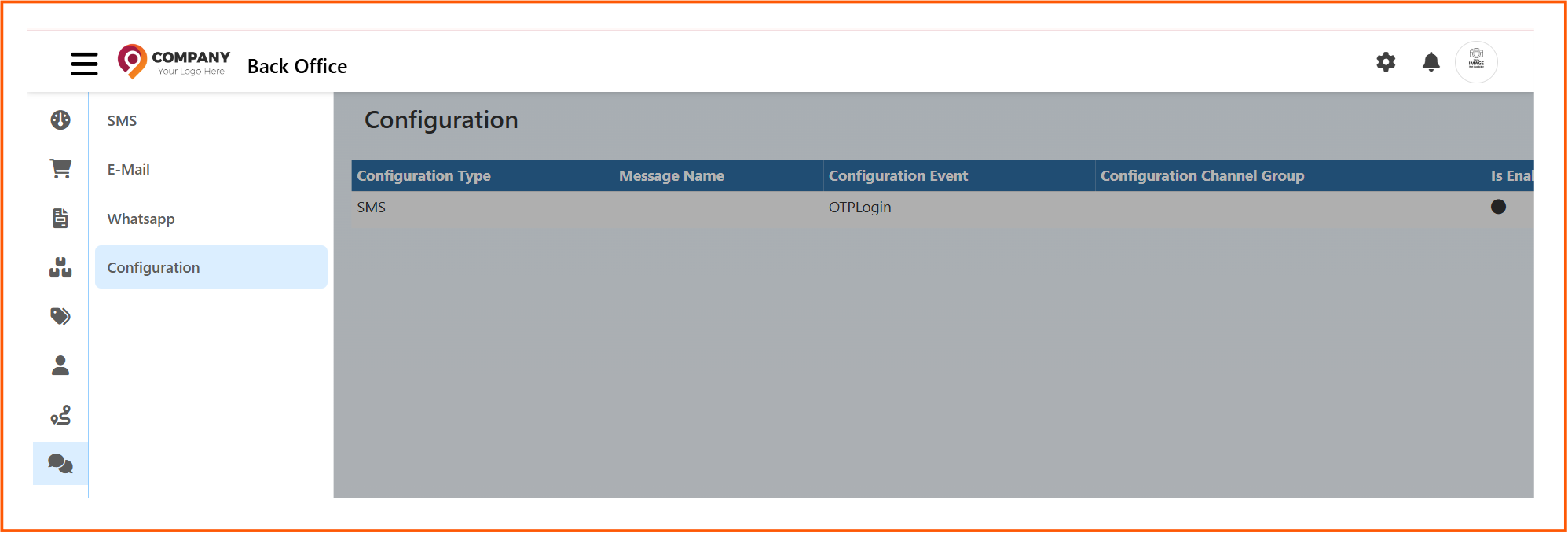
Access Inbox Configuration
- Login to the Back Office
- Open Inbox
- Click Configuration
This opens the master template configuration page where all communication templates are listed.
Inbox Sections
The Configuration section is the common setup area used to create templates for:
- SMS
- Printer
- CouponPrint
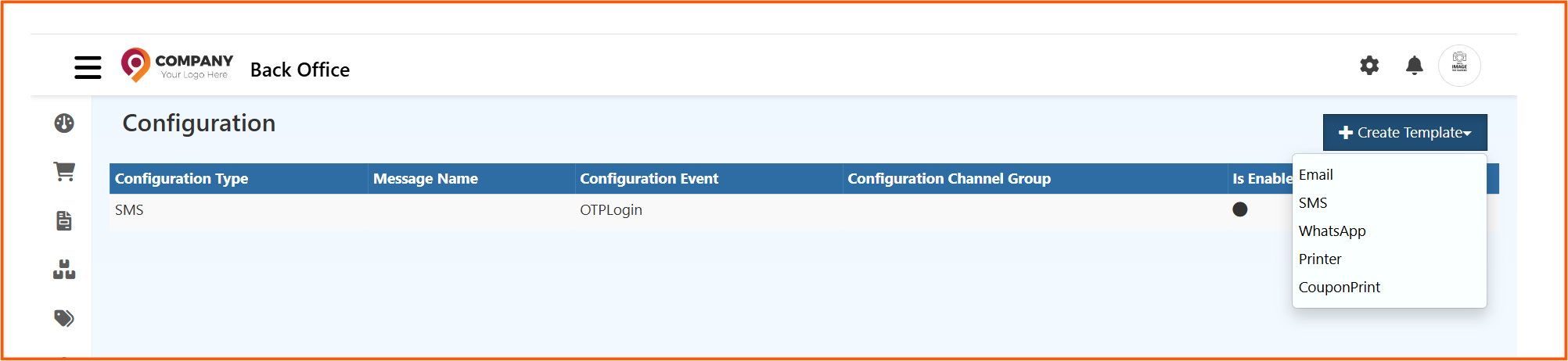
Instead of setting up each channel in separate places, O2VEND keeps them together under one Configuration screen so the process is easier to manage.
Create Template Option
The Create Template button is available at the top-right of the page.
Choose the required option based on the channel in which the message should be sent.
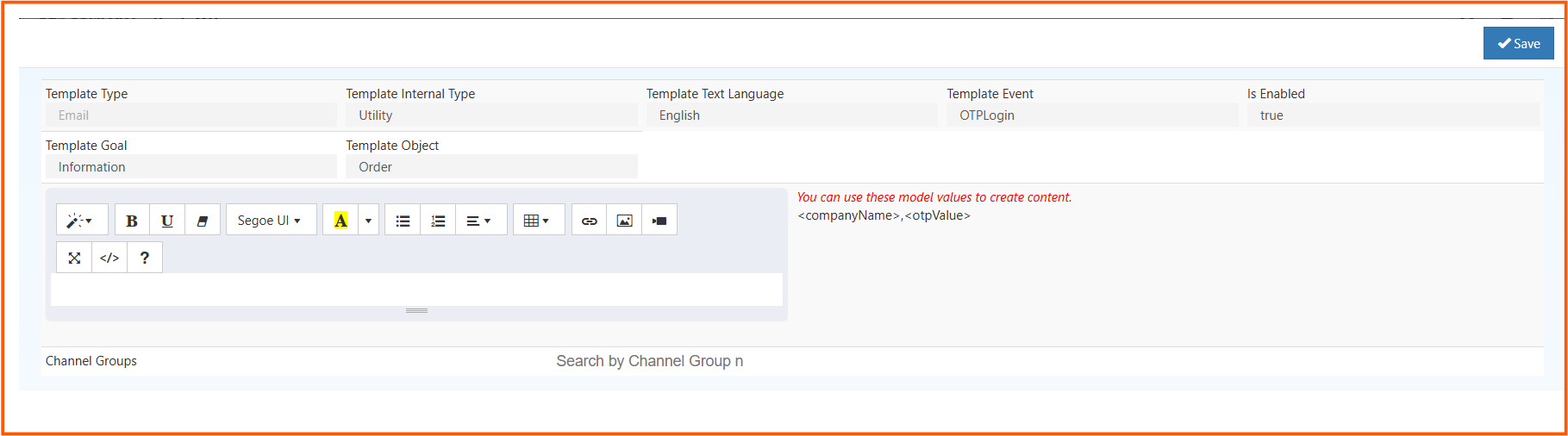
Configuration List Page
The main Configuration table displays all created templates in one list.
Each row represents one template configuration.
Columns in the Configuration Page
Configuration Type
This shows which communication channel the template belongs to.
Examples:
SMSEmailWhatsAppPrinterCouponPrint
Message Name
This is the name or label of the configured message.
It helps you identify the template easily when many templates are available.
Typical examples may include:
OTPLoginCustomerWelcomeOrderCreatedToCustomer
Configuration Event
This tells when the template should be triggered automatically.
Example:
OTPLogin
That means the template is used when the OTP login event happens in the system.
Configuration Channel Group
This is used when the template should apply only to a specific channel group, branch, store group, or business segment.
If channel groups are used in your setup, this field helps control which group receives the template.
Is Enabled
This shows whether the template is active.
- enabled templates can be used by the system
- disabled templates stay saved but will not trigger
Use this when you want to temporarily stop a notification without deleting the configuration.
How the Configuration Flow Works
The easiest way to understand the page is to follow this order:
- Open Inbox -> Configuration
- Click Create Template
- Choose the communication type
- Create the template for that channel
- Map the correct event
- Enable the template
- Save it
- The system will use it automatically when that event happens
This is the same base flow for SMS, Email, WhatsApp, Printer, and CouponPrint templates.
Channel Types Explained
SMS
Use SMS templates for:
- OTP messages
- order updates
- shipping notifications
- delivery confirmations
SMS is usually used for short and immediate notifications.
Use Email templates for:
- OTP login
- welcome emails
- order confirmation
- detailed communication with formatted content
Email is suitable when you need structured content and better branding.
Use WhatsApp templates for:
- customer alerts
- order and delivery updates
- quick communication with richer visibility
WhatsApp is useful for direct and highly visible customer communication.
Printer
Use Printer templates when output needs to be generated for printing.
This can be used for print-based communication or print-ready operational templates.
CouponPrint
Use CouponPrint templates when the system needs to generate coupon-related printable output.
This is useful for promotional or coupon-based print flow.
After saving, the template appears in the Inbox -> Configuration list. If it is enabled and linked to the correct event, O2VEND will automatically use it for the selected communication channel.