Supplier Management
The Suppliers section in O2VEND helps you manage supplier records, contact details, tax information, supplier groups, and address information from one place.
This page is useful when you want to:
- view all suppliers in one list
- add or edit supplier records
- manage supplier profile details
- assign supplier groups and credit rules
- maintain supplier address and contact information
Navigation Path
Back Office -> Parties -> Supplier
Access Suppliers
- Login to the Back Office
- Open Customer
- Open the Supplier section
This opens the Suppliers list page where all supplier records are displayed.
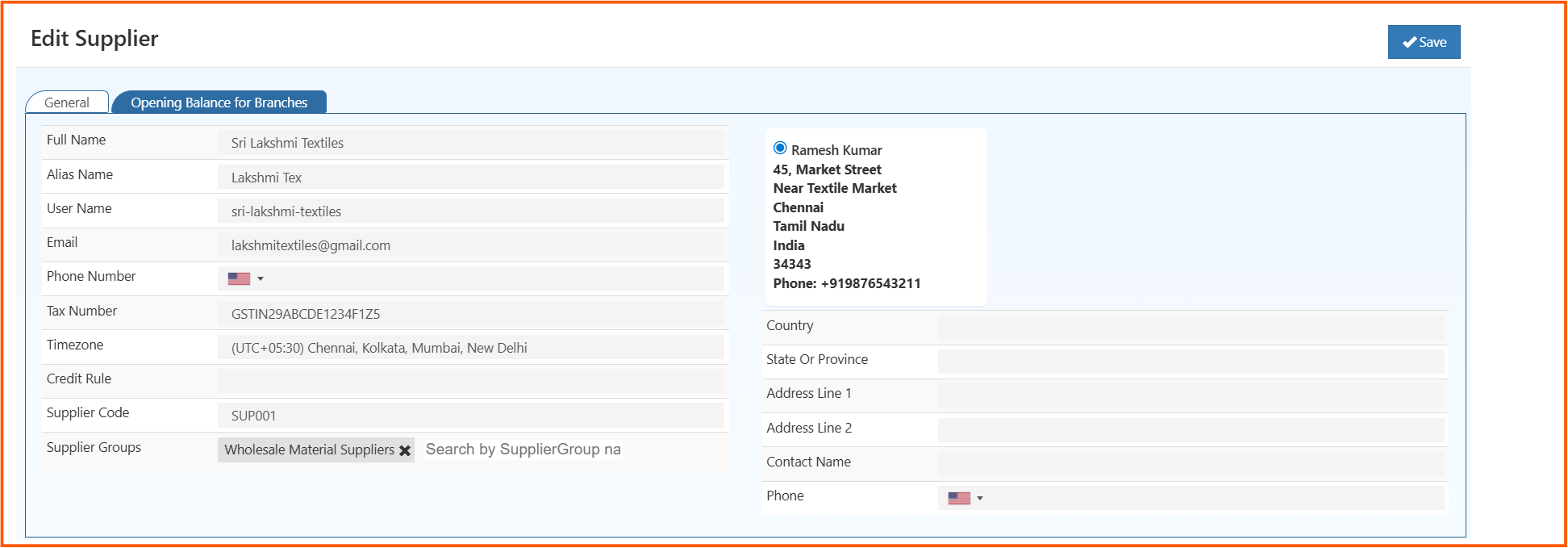
Suppliers List Screen
The Suppliers page shows all created supplier records in one place.
Fields in the List Screen
FullName
Shows the supplier name.
This helps identify the supplier record quickly.
Code
Shows the supplier code.
Example: SUP001
This is useful for supplier identification in purchase and business records.
Created On
Shows the date and time when the supplier record was created.
The date filter can also be used to search suppliers by creation period.
Actions
The action icons are used to:
- edit the supplier
- delete the supplier
Add Supplier
The Add Supplier button is used to create a new supplier record.
How to Create or Update a Supplier
- Go to Back Office -> Customer -> Supplier
- Click Add Supplier or open an existing supplier for edit
- Enter profile details such as name, alias name, username, email, and phone number
- Add tax number and timezone if required
- Assign credit rule and supplier group if needed
- Enter country, state, address, and contact details
- Review the Opening Balance for Branches tab if required
- Click Save
Supplier Screen
When you click the edit icon or open a supplier record, the Edit Supplier page opens.
The page contains supplier profile details, tax information, supplier group assignment, and address details.
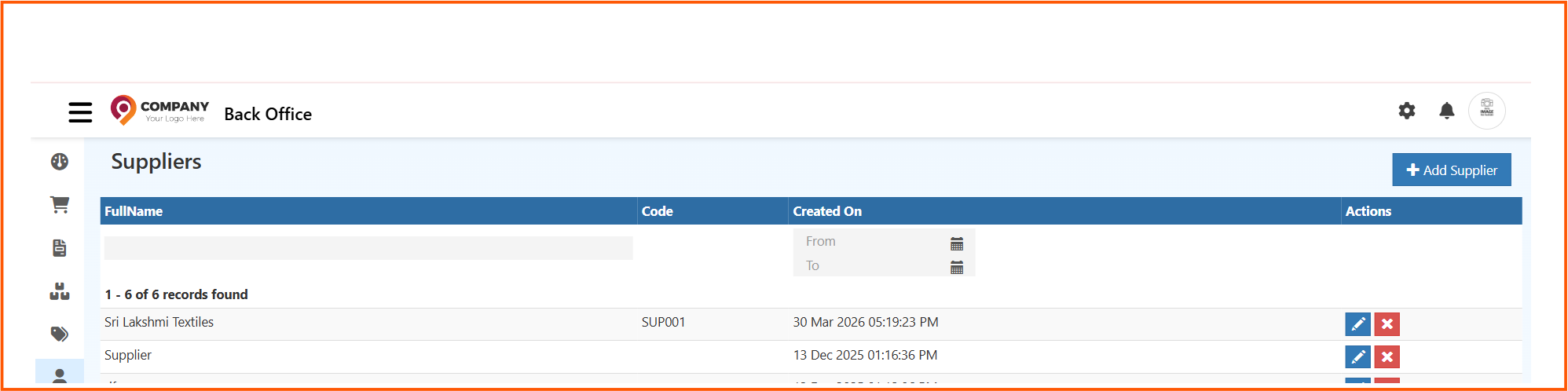
Supplier Fields
Each field in the Supplier screen has a specific purpose.
Full Name
Enter the full name of the supplier.
Example: Sri Lakshmi Textiles
Alias Name
Enter a short or alternate name for the supplier.
Example: Lakshmi Tex
User Name
Enter the username for the supplier record.
Example: sri-lakshmi-textiles
Enter the supplier email address.
Example: [email protected]
Phone Number
Enter the main supplier contact number.
Tax Number
Enter the supplier tax-related number if required.
Example: GSTIN29ABCDE1234F1Z5
Timezone
Select the supplier timezone.
Example shown in the screen:
(UTC+05:30) Chennai, Kolkata, Mumbai, New Delhi
Credit Rule
Assign a credit rule if the supplier should follow a specific credit policy.
Supplier Code
Enter or view the supplier code.
Example: SUP001
Supplier Groups
Use this field to assign the supplier to a supplier group.
Example shown in the screen:
Wholesale Material Suppliers
This is useful when purchase rules or price lists are managed group-wise.
Country
Select the country of the supplier address.
State Or Province
Select the state or province of the supplier address.
Address Line 1
Enter the primary supplier address line.
Address Line 2
Enter the secondary address line if needed.
Contact Name
Enter the main contact name for the supplier.
Phone
Enter the phone number linked to the address/contact section.
Opening Balance for Branches
This tab is used when branch-specific opening balance information needs to be maintained for the supplier.
Save
Click Save after entering or updating all required details.
Why Supplier Management Is Useful
The Suppliers section helps you:
- maintain complete supplier records
- organize supplier contact and address details
- assign supplier groups and purchasing rules
- improve supplier tracking in business operations
Best Practices
- Enter the correct supplier name, code, phone number, and email
- use the right tax number for compliance
- assign the correct supplier group where needed
- review address details before saving
- keep supplier data updated for purchasing and communication accuracy
Result
After saving, the supplier record appears in the Suppliers list and can be used in supplier management, purchase workflows, pricing rules, and related business operations.